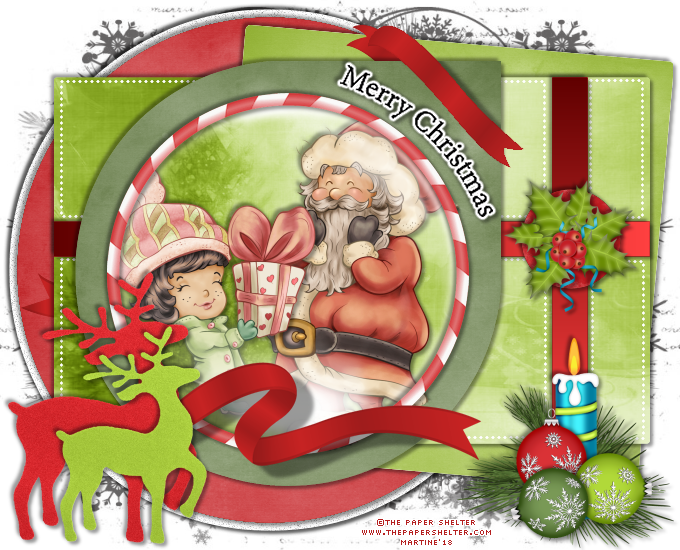
You can do pretty much what you like with your result: create signatures with name added, extras or stats, websets. Give all the credits that are required.
 Tubes of your choice, free or not, but credit for them must be added to your
tag. I used a tube ©The Paper Shelter -
www.thepapershelter.com. Don't forget your license! It must be legible on
your tag. 
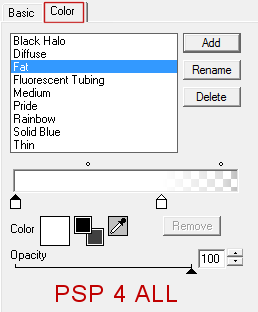
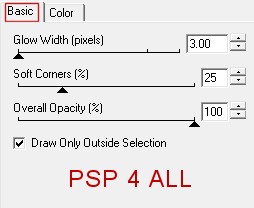
STEP 1 Open template DD_Christmas_Template_1_MerryChristmas. Delete Raster 14. Click on bg and add a layer. Fill with #646262. Ouvrir DD_NWM1. Layers > New Mask Layer > From Image and select Mask DD_NWM1. Layers > Merge Group. Duplicate this layer. Image > Mirror > Horizontal Mirror. STEP 2 White Circle - Leave as is and add a Drop Shadow 3,3,40,5. Then repeat the Drop Shadow but this time enter -3,-3,40,5. STEP 3 Brown Circle - Sélections > Sélectionner tout. Sélections > Flottante. Sélections > Statique. Ajouter un calque et coller le papier MMD_ChristmasBlessings_paper 6 dans la sélection. Sélections > Tout désélectionner. Ajouter la même ombre portée une fois avec3,3,40,5 et une fois avec -3,-3,40,5. Supprimer le calque brown circle. STEP 4 White square - Selections > Selectionner All. Selections > Float. Selections > Defloat. Add a layer and paste paper MMD_ChristmasBlessings_paper 7 into selection. Selections > Select None. Add the same Drop Shadow once with 3,3,40,5 and once with -3,-3,40,5. Delete white square. STEP 5 ribbon backs - Ne rien changer. dark green rectangle - Selections > Selectionner All. Selections > Float. Selections > Defloat. Add a layer and paste paper MMD_ChristmasBlessings_paper 18 into selection. Selections > Select None. Add the same Drop Shadow once with 3,3,40,5 and once with -3,-3,40,5. Delete dark green rectangle. STEP 6 dashed shapes - Ne rien changer. red strip2 - Selections > Select All. Selections > Float. Selections > Defloat. Add a layer and fill with a Gradient #ff4040 et #600000. Angle=0 et Repeat=0. Selections > Select None. Add the same Drop Shadow once with 3,3,40,5 and once with -3,-3,40,5. Delete red strip 2. STEP 7 red strip 1 - Same Gradient but change the Angle and set to 270°. Same 2 Drop Shadows. STEP 8 light green shape - Selections > Selectionner All. Selections > Float. Selections > Defloat. Add a layer and paste paper MMD_ChristmasBlessings_paper 5 into selection. Selections > Select None. Add the same Drop Shadow once with 3,3,40,5 and once with -3,-3,40,5. Delete light green shape. STEP 9 white circle - Selections > Selectionner All. Selections > Float. Selections > Defloat. Add a layer and paste paper MMD_ChristmasBlessings_paper 18 into selection. Selections > Select None. Add the same Drop Shadow once with 3,3,40,5 and once with -3,-3,40,5. Delete white circle. STEP 10 Add the tube and add the same 2 Drop Shadows. STEP 11 glass effect - Change nothing. ring recolor - Apply the same 2 Drop Shadows. ribbon top layer d/s - leave as is. Raster 2 - Leave the ribbons as is. STEP 12 Merry Christmas - Image > Resize. Click on Percentage and add 125 for the Height and the Width. Apply Eye Candy 4000 > Gradient Glow
et les deux mêmes ombres portées. STEP 13 Raster 9 - Selections > Selectionner All. Selections > Float. Selections > Deflot. Add a layer and paste paper MMD_ChristmasBlessings_paper 15 into selection. Selections > Select None. Add the same Drop Shadow once with 3,3,40,5 and once with -3,-3,40,5. Delete raster 9. ETAPE 14 MMD_ChristmasBlessings_holly 2 - 30% on the red circle. MMD_ChristmasBlessings_deco - 40%, bottom right. MMD_ChristmasBlessings_deer - 30%. Bottom left. Image > Mirror > Horizontal Mirror. MMD_ChristmasBlessings_deer_green - 25%. >Bottom left. Image > Mirror > Horizontal Mirror. . ETAPE 15 Credits: with a font like Pixelette or any other small pixel font. ETAPE 16 Save your work. Martine 6 December 2018 If you have any questions, don't hesitate to contact me   |