You can do pretty much what you like with your result: create signatures with name added, extras or stats, websets. Give all the credits that are required and for the tut to: Martine (link to http://chezmartine.com) for PSP 4 ALL (link to http://psp4all.com).
 Template: Template_6 by Dee at Dangerously Delicious Designz. Download here. Scrapkit: YabbaDabbaBoo_PamperedPupsBT_JST at Jen's Sweet Tempations. Download here. Mask: DBV Masks 123 by Vaybs. Download here. Plugins: Eye Candy 4000 > Gradient Glow. Penta.com > Dots; Jeans. Unplugged Tools > Interlace. Fonts: KR Oh Witchy Poo! and Silbooettes Tryout for the text and Pixelette for the credits. You can download my E-Book which will let you work without being connected. 
STEP 1: Template and Mask Open the template. Window > Duplicate. Close the original. Choose 4 coloiurs from your tube. I have chosen orange #FD6407, green #5C9C3B, mauve #463649 and yellow #FDD657. Click on the bg layer and fill with one of the colours of your tube: green #5C9C3B. Open DBV Masks 123 and apply. Masks > New > From image - OK. Then Masks > Delete. In PSP 8 and above, it's under Layers > New Mask Layer > From Image. OK then Delete. Template: We will now colour the different layers of the template.Nous allons maintenant colorer les différents calques de la template. For each layer, you will have to repeat this. Selections > Select All > Selections > Float > Selections > Defloat. Add a layer and work o,n this new layer: add colour and effect. Than apply an Eye Candy 4000 > Gradient Glow
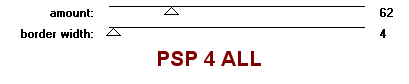
and a drop shadow. Delete the original. Then Selections > Select None. Drop Shadow: I used
right purple stripes - Fill with orange #FD6407. Apply an Inner Bevel. Effects > 3D Effects > Inner Bevel
left purple stripes - Repeat but fill with the green #5C9C3B. green strip - Fill with the 3rd colour #463649. Apply penta.com > color dot.
left purple circle and right purple circle - Fill with yellow #FDD657 and apply penta.com > Dot and Cross
dotted circles - No change. orange oval - Fill with orange #FD6407 and apply Unplugged Tools > Interlace.
blue strip - Fill with green #5C9C3B and apply the same color dot effect. large green circle - Fill with green #5C9C3B and apply penta.com > jeans
blue oval - Fill with black and apply penta.com > color dot. cloud 1 et cloud 2 - No change. white rectangle - Fill with black. purple rectangle - Fill with a gradient orange #FD6407 and green #5C9C3B. Angle at 0 and Repeats on 1. Then apply Unplugged Tools > Interlace as before. green circle - Fill with a gradient yellow #FDD657 and orange #FD6407. Angle at 40 and Repeats on 1. Puis appliquer penta.com > jeans. green stars - Fill with yellow then apply penta.com > color dot. white circle frame - Fill with black. STEP 2: Elements and Tube Haunted House - At 45%. Place in the rectangle, on the left. Witch Shadows - At 45%. Place on the right. Cat - At 20%. Image > Mirror. Place above the rectangle. Ghost - On the right. Mice - At 25%. Place on the right as on my tag. I moved the wordart towards the bottom and after having selected the word me! I have pasted on the right of the Ghost. Then deleted the original. Le Tube - I have added it on the left. STEP 3: Your text and Credits Text of your choice with the font KR Oh Witchy Poo! or your name in black then apply Eye Candy > Gradient Glow. Use the font Silbooettes Tryout for the cat. Credits with the Pixelette font or any other small pixel font. File > Save. Martine 22 October 2014 If you have any questions, don't hesitate to contact me   |