You can do pretty much what you like with your result: create signatures with name added, extras or stats, websets. Give all the credits that are required and for the tut to: Martine (link to http://chezmartine.com) for PSP 4 ALL (link to http://psp4all.com).
 Scrapkit: Cute Halloween - Ghouls & Goblins at Kissed by Kelz. Download here. Click on Here is my part, above the thumb for the kit. Mask: Halloween Masks 6 - 10 by Toxic Desirez. Click on the first mask, the 2006 mask. Fonts: BatFont for the text and Pixelette for the credits. You can download my E-Book which will let you work without being connected. 
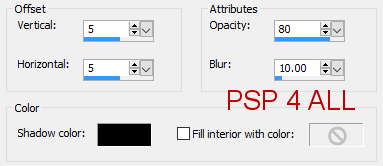
STEP 1: Mask, Elements and Tube Open a new image 800x650 and fill with black. Add a layer and fill with green #669A40. Open Mask 2006 and apply. Masks > New > From image - OK. Then Masks > Delete. In PSP 8 and above, it's under Layers > New Mask Layer > From Image. OK then Delete. KBK_GhoulsNGoblins (11) - 20%. Top, towards the right. Opacity at 50%. KBK_GhoulsNGoblins (56) - 20%. Top left. Opacity at 56%. Image > Mirror > Mirror Horizontal. KBK_GhoulsNGoblins (9) - 25%. Top left. KBK_GhoulsNGoblins (30) - 75%. On the left. KBK_GhoulsNGoblins (5) - 70%. Image Image > Mirror > Mirror Horizontal. On the right. KBK_GhoulsNGoblins (6) - 43%. In the middle, front of house and tree. KBK_GhoulsNGoblins (38) - 45%. On the left. Add your tube, bottom right. KBK_GhoulsNGoblins (19) - 40%. In the middle. Duplicate the layer to increase the opacity. KBK_GhoulsNGoblins (55) - Bottom left. Add a Drop Shadow in white (blanc) with these settings
KBK_GhoulsNGoblins (13) - 15%. Bottom right,under the WA. STEP 2: Credits with the Pixelette font or any other small pixel font. STEP 3: Text on the house Usint the BatFont font. Write your text Ghouls & Goblins - Create as Floating. Then Selections > Load/ Save Selection > Save Selection To Alpha Channel. Click on Delete on your keyboard. Then click on Selections > Load/ Save Selection > Load Selection From Alpha Channel PClick on Effects > 3D Effects > Cutout
Click on Adjust > Brightness and Contrast > Brightness on 20 and Contrast
on 0. V = 2 O = 80 H = 2 B = 5 |