Martine (link to http://chezmartine.com) for PSP 4 ALL (link to http://psp4all.com).

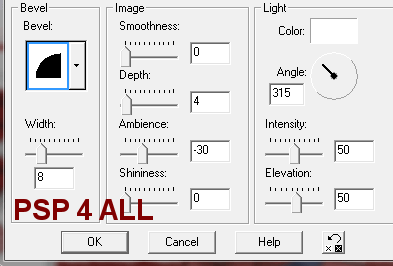
Template by Dawn of Sixxbug Creationz - Link: New Winter & Holiday Template to download here: Creative Misfits. Scrapkit: Freebie - Xmas Candy Cane - kit by Lacarolita's Designs. Direct link here . Mask: by chelle at Weescotslass Creations - Mask WSL_84. Glitter Tiles: 2 du site d' Another Jo's Paint Shop Pro Resources - Ruby Glitter et White Glitter à télécharger ici. Police: Kingthings Christmas and Pixelette for your credits. You can download my E-Book which will let you work without being connected.  Open Paint Shop Pro. Click on the template. Best not to work on the original. Click on Shift and D to make a copy. Close the original. Close the Info layer at the top. STEP 1 Activate Raster 1 and fill with white. That's the colour I would like you to use for the Results page of PSP 4 ALL. STEP 2 Add a new layer and fill with paper1 resized to 50%. Apply the mask WSL_84. Click on Masks > New > From Image - OK. Then Mask > Delete. In PSP 8 and more recent versions of PSP, go to Layers > New Mask Layer > From Image. OK. Lower the opacity of this mask layer to 55. STEP 3 Activate Frame1: make 3 copies and rename them Layer 1, Layer 2 and Layer 3. There are 3 frames in the 'White Glitter' animation that we are going to use to fill each layer. Open White Glitter in Animation Shop. Click on the first frame and then click on File > Export to PSP or copy this first frame in PSP. Use this first frame to fill Layer 1. Selections > Select All > Selections > Float > Selections > Defloat and fill with the first frame of 'White Glitter'. Keep selected and activate Layer 2. Fetch the second frame of the White Glitter animation and use it to fill this Layer 2. Repeat for Layer 3 but this time use the 3rd frame of the White Glitter animation. Selections > Deselect all. STEP 4 Activate the Blue Oval layer: then Selections > Select All > Selections > Float > Selections > Defloat. Add a layer and fill with paper1 - set the scale at 50%. Delete the original layer. STEP 5 Activate Bar Frames: make 3 copies and rename them Layer1, Layer 2 and Layer 3. We will fill each one with the "Ruby Glitter" that you must first colorize. I used red. Colours > Colorize or Adjust > Hue and Saturation. I set both Hue and Saturation at 255.Teinte et Saturation à 255. Fill Layer 1 with the first frame of the Ruby Glitter. Selections > Select All > Selections > Float > Selections > Defloat and fill with the first frame of 'Ruby Glitter'. Keep selected and activate Layer 2. Fetch the second frame of the Ruby Glitter animation and use it to fill this Layer 2. Repeat for Layer 3 but this time use the 3rd frame of the Ruby Glitter animation. Selections > Deselect all. STEP 6 Activate the Bars layer: then Selections > Select All > Selections > Float > Selections > Defloat. Add a layer and fill with paper7 with the scale set at 50%. Delete the original layer. STEP 7 Activate Frame 2: make 3 copies and rename them Layer1, Layer 2 and Layer 3 and fill with the "Ruby Glitter" tile. See STEP 5. STEP 8 Activate the Pink oval layer: Selections > Select All > Selections > Float > Selections > Defloat Add a layer and fill with paper1 with the scale set at 50%. Delete the original layer but keep selected. Add a new layer. Click on the Happy Holidays layer and then Edit > Copy and Edit > Paste as a new image. Click on this new image with the text and Edit > Copy and then click back on the layer you added above the Pink oval layer and paste into selection. I changed the colour of the text from black to white. Colours > Adjust > Hue/ Saturation/ Lightness or Adjust > Hue and Saturation > Hue/ Saturation/ Kightness and set to 100. Click on Ok. STEP 9 - Elements and tube Christmas Tree - Lacarolita_X-mas Candy Cane tree resized to 55% of the original. Place above the Bars layer and below the Frame2 layer. Tube - above all the other layers. Gifts - Lacarolita_X-mas Candy Cane presents resized to 35% of the original. Position on the left. Flowerr - Lacarolita_X-mas Candy Cane flower3 resized to 20%, at the top and on the right. STEP 10 Save one more time and then resize your tag to 80% with all layers open! New layer and add your credits with a small pixel font like Pixelette , Taille 6. And on another layer, your name. I used Kingthings Christmas, Bold in size 72 with paper1 for the fill; and I then applied a 3D Effect: Inner Bevel.
STEP 11 Add a drop shadow: H = -3 et V = 3 Opacity = 30 and Blur = 6. on the tube, the presents, the flower and the tree. STEP 12 - Animation Close the following layers: all 3 Layer 2 et all 3 Layer 3 that is 6 layers in all and merge visible all the other layers. Copy this merged image into Animation Shop. Go back to PSP and click on the Undo arrow until all the layers are open. This time close all the layers except the 3 x Layer 1 and the 3 x Layer 3 - 6 in all and merge visible. Copy paste this new image after the first one in AS. Go back to PSP and click on Undo until all the layers are open. This time close all 3 x Layer 1 and all 3 x Layer 2 and merge visible the others. Paste after the second frame in AS. Save as a gif. Martine 6 December 2009 If you have any questions, don't hesitate to contact me   |