You can do pretty much what you like with your result: create signatures with name added, extras or stats, websets. Give all the credits that are required.
 Tubes of your choice, free or not, but credit for them must be added to your
tag. I used a tube ©The Paper Shelter -
www.thepapershelter.com. Don't forget your license! It must be legible on
your tag. 
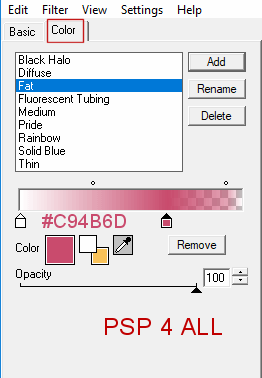
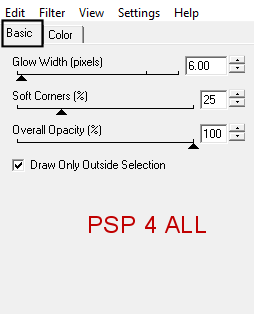
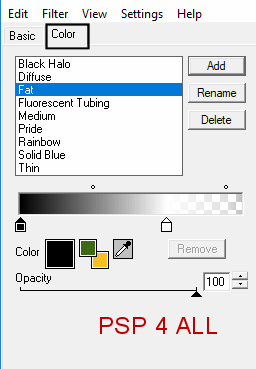
STEP 1 Open the template ScrapTK_TheBigChill-template1. Delete the layer at the top: info and also these layers: white rectangle and white thin strip. Click on bg and add a layer. Fill with #78C3E9. Open DD_NWM3. Layers > New Mask Layer > From Image and select Mask DD_NWM1. Layers > Merge Group. STEP 2 grey circle - Selections > Select All. Selections > Float. Selections > Defloat. Add a layer and paste ScrapTK_TheBigChill-paper5 in the selection. Selections > Select None. Delete the original layer. Apply Eye Candy 4000 > Gradient Glow
and add a Drop Shadow. : -3 ; 3 ; 65 ; 8. STEP 3 blue small circle - Selections > Select All. Selections > Float. Selections > Defloat. Add a layer and paste ScrapTK_TheBigChill-paper6 in the selection. Selections > Select None. Delete the original layer. Apply Eye Candy 4000 > Gradient Glow
and add Drop Shadow: -3 ; 3 ; 65 ; 8. Add the flower ScrapTK_TheBigChill-element5 and colorize - Adjust > Hue and Saturation > Colorize with the Hue at 243 and Saturation at 130. Add the same Drop Shadow. STEP 4 pink rounded rectangle - Selections > Select All. Selections > Float. Selections > Defloat. Add a layer and paste ScrapTK_TheBigChill-paper4 in the selection. Selections > Select None. Delete the original layer. Apply Eye Candy 4000 > Gradient Glow
Add the same Drop Shadow. STEP 5 grey rectangle - Selections > Select All. Selections > Float. Selections > Defloat. Add a layer and your photo in the selection. Duplicate this layer and colorize the copy. Same Hue and Saturation. Selections > Select None. Back on the layer with the photo. Apply Eye Candy 4000 > Gradient Glow
and the same Drop Shadow. Delete the grey rectangle layer. STEP 6 pink thin strip - Copy Paste ScrapTK_TheBigChill-element18 right above. Delete the pink thin strip layer. Apply Eye Candy 4000 > Gradient Glow
and the same Drop Shadow. STEP 7 blue thin strip - Copy and then Paste ScrapTK_TheBigChill-element18a right above. Delete the original blue thin strip. Apply Eye Candy 4000 > Gradient Glow
Add the same Drop Shadow. Move the layer under the pink ScrapTK_TheBigChill-element18. STEP 8 Add the tube and the same Drop Shadow. STEP 9 Add the wordart ScrapTK_TheBigChill-wordart1 - 70%. Apply the Gradient Glow last used and the same Drop Shadow. STEP 10 - Elements ScrapTK_TheBigChill-element12 - 40%. Drop Shadow. ScrapTK_TheBigChill-element14 - 25%. Drop Shadow. ScrapTK_TheBigChill-element4 - 25%. Drop Shadow. ScrapTK_TheBigChill-element5 - 25%. Drop Shadow. ScrapTK_TheBigChill-element13 - 25%. Drop Shadow. ScrapTK_TheBigChill-element10 - 40%. Drop Shadow. ScrapTK_TheBigChill-element10 - 35%. Colorize with the Hue at 142 and Saturation at 184. Drop Shadow. Place on the first snow flake. ScrapTK_TheBigChill-element10 - 20%. Duplicate. Drop Shadow on the copy. ScrapTK_TheBigChill-element10 - 20%. Colorize in blue. Drop Shadow. STEP 11 Credits: with a small font like Pixelette or any other small pixel font. STEP 12 Save your work. Martine 17 January 2019 If you have any questions, don't hesitate to contact me   |