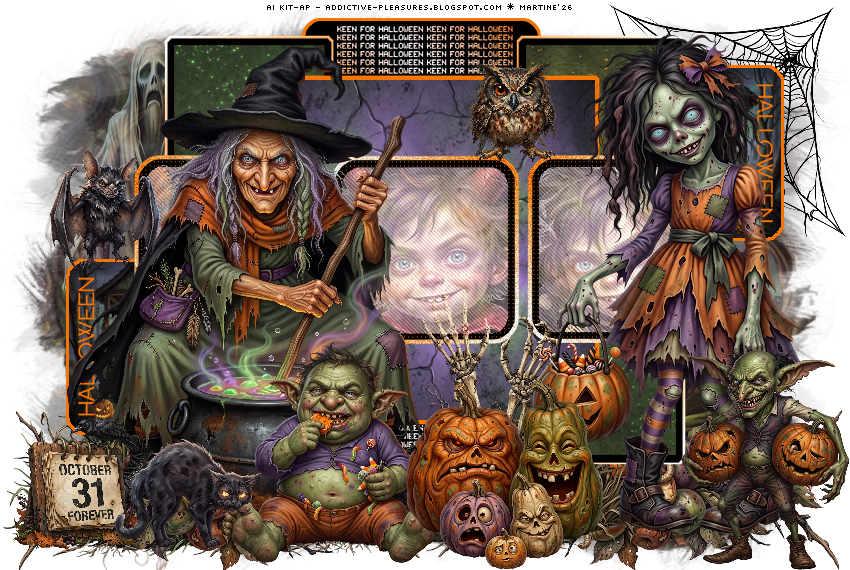
Supplies: Template and mask.
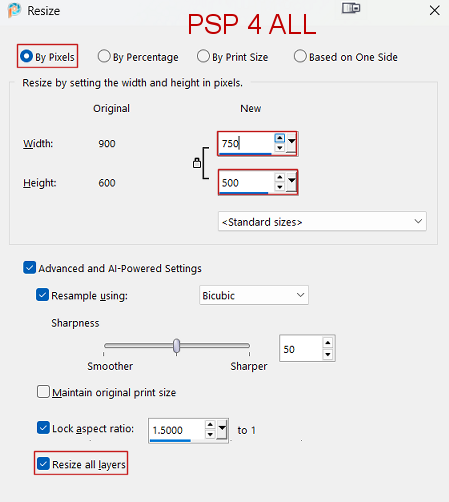
Plugins: Xero > Clarity. penta.com>Jeans Template: TTz_Halloween2013Temp1 by Sylvie - Silly Creationz, no longer online. In the supplies folder. AI Scrapkit The Halloween Hag on the blog Addictive Pleasures. Download here. Mask: WSL_Mask488 of Weescotslass. In the supplies folder. Font: Pixelette for the credits ****************************** Reminder: *** Method to color a layer or add a paper - To fill a layer with colour, Selections > Select All. Selections > Float > Selections > Defloat. Or click with the magic wand. Add a layer > Fill with the new colour or paper, texture. Apply plugin if needed. Selections > Select None. Or click on Selections and paste the paper or texture as a new layer. Selections > Invert. Delete. Select None. Delete the original layer. *** Depending on the colors & tube you are going to use, feel free to change the mode and opacity of the layers. *** Template: I work from the bottom to the top.rs. STEP 1 - Le fond 1. Open the template. Shift+D to duplicate. 2. Delete the top layer Watermark. 3. Click on Image > Resize
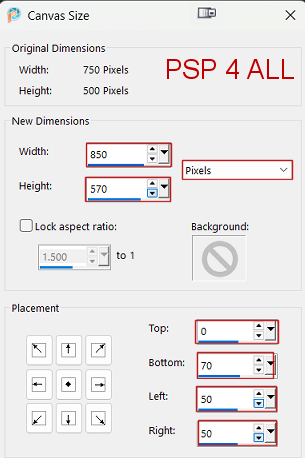
4. Then Image > Canvas size
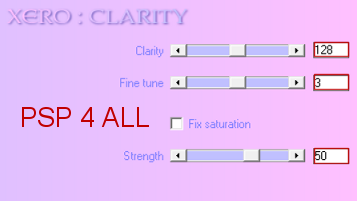
5. White background. Add a layer. Select All and fill with the paper The Halloween Hag-paper2. 6. Selections > Select None. 7. Open mask WSL_Mask488. 8. Layers > New masl layer > From an image and select WSL_Mask488. 9. Click on OK. 10. Layers > Merge group. 11. bottom black square ctr - Selections > Float > Defloat 12. Selections > Modify > Expand 3 pixels. 13. Add a layer and fill with #F87400. 14. Layers > Arrange > Move down. 15. Selections > Select None. 16. top black square ctr - Repeat 11 to 15. 17. text: pixel bottom and text: pixel top - apply Xero > Clarity
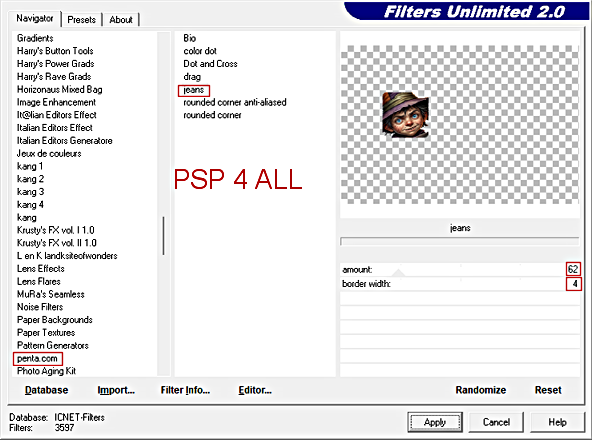
18. orange ctr square - move this layer up and place it under black square - ctr. 19. blk square - bottom left - Select All and fill selection with paper The Halloween Hag-paper9. 20. Selections > Modify > Expand 3 pixels. 21. Add a layer and fill with #F87400. 22. Layers > Move Down. 23. Selections > Select None. 24. blk square - top right - Repeat what you have done for blk square - bottom left (19 to 23). 25. omg circle left et omg circle right - Delete them. 26. 2 orange rectangles - back - Select All and fill selection with paper The Halloween Hag-paper14. 27. Selections > Select None. 28. black square - ctr - Select All and fill selection with paper The Halloween Hag-paper15. 29. Selections > Select None. 30. 3 orange squares - Fill one square at a time, one after the other. Start with the square on the left. 31. With the magic wand - tolerance on 50, select the left square. 32. Add a layer and fill with paper The Halloween Hag-paper13. 33. The Halloween Hag-boy1 at 80%. Add just the head in the selection. 34. Selections > Invert > Delete. 35. Selections > Select None. 36. Appy penta.com > Jeans.
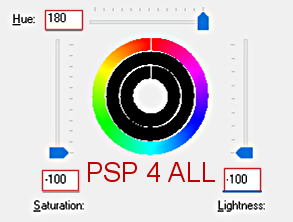
37. Square frame in the middle. Repeat 31 to 36 but use The Halloween Hag-boy3 at 80%. 38. Square frame on the right. Repeat 31 to 36) but use The Halloween Hag-boy2 at 80%. STEP 2 - Elements 39. The Halloween Hag-ghost2 - 58%. On the left above the mask. Opacity = 58%. 40. The Halloween Hag-web1 - 35%. On the right, at the top. 41. Then I colored it in black - Adjust > Hue and Saturation > Hue/ Saturation/ Lightness
42. The Halloween Hag-grass2 - 20%. On the left. 43. Duplicate. Image > Miroir. 44. The Halloween Hag-garland1 - 45%. On the left. 45. Duplicate. Image > Mirror. 46. The Halloween Hag-grass2 - 20%. 47. Activate the top layer. The Halloween Hag-tube3 - 25% on the left. 48. The Halloween Hag-calendar1 - 20%. 49. The Halloween Hag-cat2 - 25%. Image > Mirror. On the left. 50. The Halloween Hag-skeletonhands1 - 25%. 51. The Halloween Hag-babyogre1 -_30%. 52. The Halloween Hag-girl2 - 15%. A droite. 55. The Halloween Hag-pumpkins4 - 30% 54. The Halloween Hag-owl1 - 15%. 55. The Halloween Hag-goblin1 - 30%. 56. The Halloween Hag-bat1 - 18%. On the left. STEP 3 - Credits 57. Resize if you intend to. 58. Credits with a small font like Pixelette or any other small font. 59. Save.
If you have any questions, don't hesitate to contact me
|