|
|
(Version française ICI) |
|
|
|
|
|
|
|
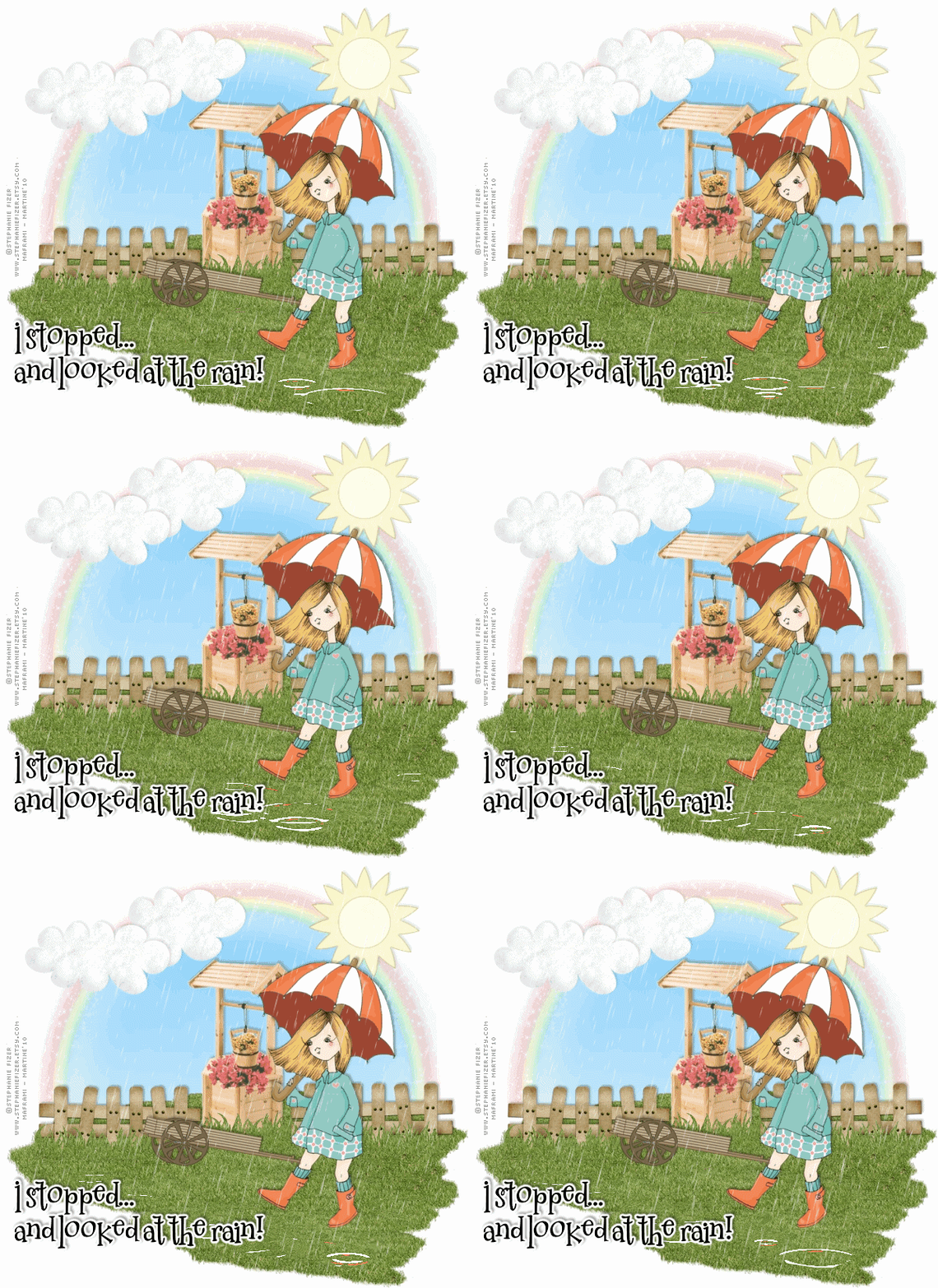
You can do pretty much what you like with your result: create signatures with name added, extras or stats, websets.
|
Martine  |

Scrapkit: by Bel Vidotti à http://lafleurstuffs.blogspot.com/ - Into Spring
Mask: WSL_Mask44 by Chelle at http://weescotslasscreations.blogspot.com/
Free program: Squirlz Water - It will install in Program Files. Squirlz Water is an independant program and will not install in PSP.
Eye Candy 4000 for the Gradient Glow used on the text.
Fonts: 2 Peas Mister Giggle for the text/ name and Pixelette for the credits.
You can download my E-Book which will let you work without being connected. Later On!

STEP 1: Background
Open an image 650x500 - Fill with white.
STEP 2: Mask
Mask : add a new layer and fill with blue: the sky. I used a gradient - #68C6FB et #FFFFFF. Apply Chelle's WSL_Mask44. Masks > New > From image - OK. Then Masks > Delete. In PSP 8 and above, it's under Layers > New Mask Layer > From Image. OK then Delete.
STEP 3: Elements
BVS Into Spring Rainbow : add a a new layer and resize to 65%. Duplicate and then Image > Mirror. Position where best.
BVS Into Spring Sun : resized to 40%.
BVS Into Spring Cloud01 : add as a new layer and resize to 40%.
BVS Into Spring Cloud02 : resized to 40%.
BVS Into Spring WoodFlowers : add as a new layer and resize to 58%.
BVS Into Spring Fence 02 : ajouté en nouveau calque puis redimensionné à 35%. Dupliquer ce calque et puis Image > Miroir. Positionner où il faut.
STEP 4: Tubes
Add your main tube(s).
Grass with your Picture Tube: select Corel Tube Grass01 with the scale at 20. Activate the sky layer, add a layer and then arrange the grass to your taste.
BVS Into Spring Grass : resized to 30%.
Selections > Select All > Selections > Float > Selections > Defloat and fill with the Grass 01 tube so this element is exactly the same as the rest of your grass.
Activate the Fence02 layer. Then add the element that you have just recolored, delete what you don't need on each side so that it covers the bottom part of Fence02.
Duplicate this new layer and cover the other fence with it.
Repeat to cover the bottom part of BVS Into Spring WoodFlowers.
STEP 5: Drop shadow
Add this drop shadow on your tube and all the elements except the sun and clouds:
|
V = -2 |
O = 40 |
|
H = 2 |
B = 4 |
Add this drop shadow on the clouds and sun:
|
V = -2 |
O = 10 |
|
H = 2 |
B = 4 |
Save all layers opened in case you need to change something later on.
Then merge visible and save under a different name as a JPG - File > Export > JPEG Optimizer.
STEP 6: Sqirlz Water
Open Sqirlz Water. Click on the icon
|
|

and open your image.
Check that your image is at 100%
:
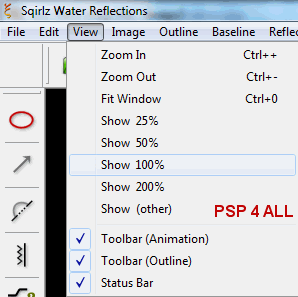
Then click on the ellipse-shaped tool on the left:
|
|

This tool is like the lasso tool in PSP. Click, go round to mark out what will be your selection - the area where you will have your puddles and then right click to close off. I stayed away from the edges because i did not want any white reflection in the puddles, I just wanted puddles in the grass.
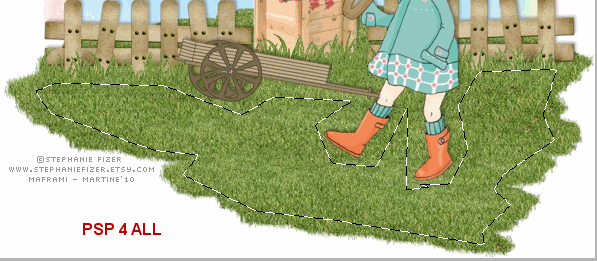 |
Then click on the icon
|
|

You will see this:
|
|
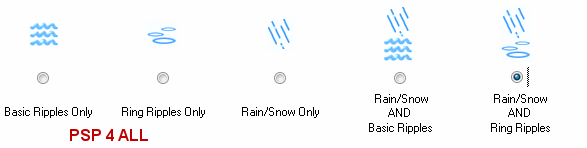
Select the last option Rain/ Snow AND Ring Ripples.
Then click on the icon
|
|

and set up like this
|
|
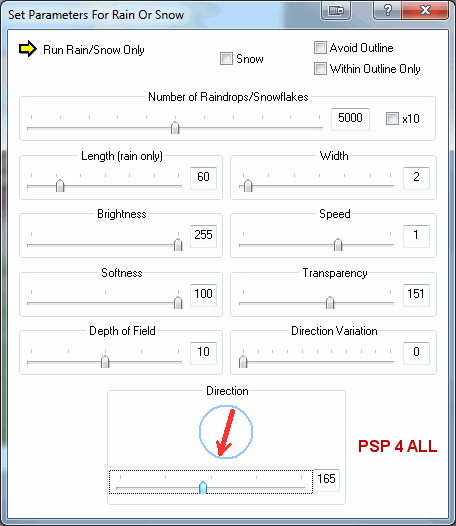
Then click on the icon
|
|

and set up like this:
|
|
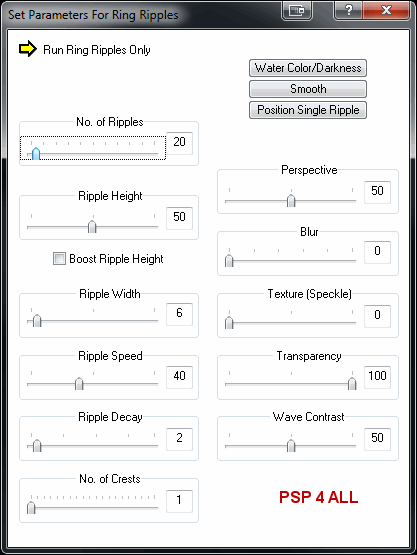
Then click on the icon
 |
to view your animation.
And to finish off, click on the icon
 |
to save your animation.
STEP 7: open your animation in Animation Shop.
There should be 20 frames and it's rather heavy! So let's remove some. Click on
Edit > Select All then Animation > Cull Animation.
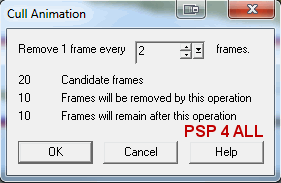 |
You now have 10 frames. Click again and enter 3 instead of 2 to have 7 frames
in the final animation.
STEP 8: Credits & Text or/and Name dans PSP
Credits :
Select All and Copy Paste in your animation.
Text/ Name : 2 Peas Mister Giggle in black then apply a gradient Glow with Eye Candy 4000. Click on Fat under Color and add a drop shadow.
Then paste in AS. Duplicate to have 7 frames and paste into your main animation.
Martine
22 February 2010
If you have any questions, don't hesitate to contact me

