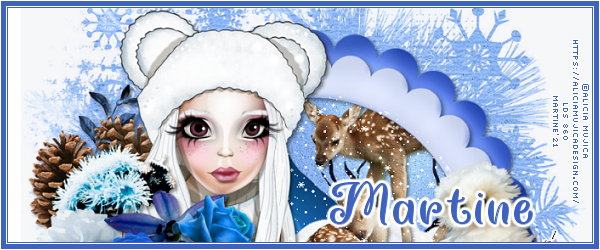
STEP 1 - Mask and some elements Open an image 800x800 and fill with white. Resize later if necessary. Copy paste Miz_WW_paper6 as a new layer. Layers > New Mask Layer > From Image and choose DD_NWM1. Click on OK. Layers > Merge Group. Duplicate. Miz_WW_element44 - On the right, at the bottom. Duplicate. Place on the left. Image > Mirror Horizontal. Image > Miroir Vertical. Duplicate. Image > Mirror Horizontal. Miz_WW_element28 - 45%. Rotate left 45°. Duplicate. Image > Mirror Horizontal. Image > Miroir Vertical. Miz_WW_element56. Objects > Align > Horizontal Center. Miz_WW_element29 - 90%. Duplicate - 90%. Selections > Select All. Selections > Float. Selections > Defloat. Add a layer. Fill with white. Properties > Blend mode on Screen. Opacity 75%. Merge > Merge Down. Effects > 3D Effects > Inner Bevel.
Merge > Merge Down. Rename Frames. STEP 2 - Other elements and Tube Miz_WW_element57 - 45%. Bottom. Miz_WW_element14 - 30%. Adjust > Sharpen > Sharpen More. Miz_WW_element10 - 40%. Image > Rotate left 90°. Bottom right. Duplicate and place lower on the left. Miz_WW_element4 - 35%. Bottom right. Miz_WW_element9 - 35%. Left. Miz_WW_element51 - 45%. Left. Add Tube. Miz_WW_element11 - 45%. Left. Miz_WW_element6 - 20%. Miz_WW_element8 - 45%. Miz_WW_element39 - 50%. Image > Mirror Horizontal. Miz_WW_element41 - 30%. Miz_WW_element40 - 40%. Miz_WW_element7 - 30%. Miz_WW_element42 - 45%. Miz_WW_element7 - 30%. Miz_WW_element16 - Colorize. Hue on 153 and Saturation on 193. 30%. Top right. STEP 3 - Elements in the Smaller Frame With the Magic Wand, click inside the Smaller Frame. Selections > Modify > Increase 5 pixels. Copy Paste Miz_WW_paper1 Into Selection. Keep selected. Add Miz_WW_element3 - 30%. On the left. Selections > Invert > Delete. Miz_WW_element1 on the right. Miz_WW_element34 - 45%. On the right. Delete. With the Paint Brush, color white, partially color the paws of the mother deerto give the impression that the paws are sinking into the snow. I resized all layers to 85%. STEP 4 - Credits Credits: with a small pixel font like Pixelette or any other small font. STEP 5 - Animation snow if you want to add it. Another option is to make a Forum tag if you so wish. If you don't want to animate but want to make a tag, then go straight to STEP 6. Unzip and open the snow animation in PSP. There are 10 frames. We will paste them one after the other on our work. Activate the layer we named Frames. With the Magic Wand, click inside. Click on the snow animation. Edit > Copy Frame 1. Back on your work, paste Frame 1. Name this layer Snow 1. Selections > Invert > Delete. Click on the snow animation. Edit > Copy Frame 2. Back on your work, paste Frame 2. Name this layer Snow 2. Selections > Invert > Delete. Click on the snow animation. Edit > Copy Frame 3. Back on your work, paste Frame 3. Name this layer Snow 3. Selections > Invert > Delete. And keep on until you have pasted all 10 frames onto youyr working image. Each time, rename each layer. Selections > Select None. --------------------- Close all Snow layers 1 to 10.
Click on File > Animation Wizard and save as a gif. STEP 6 - Signature Tag Forum si vous le souhaitez
Close the credits layer and these: Miz_WW_element3; Miz_WW_element56 and Miz_WW_element16. Then move most of the elements towards the top. Look at my print screen: the 2 horizontal lines show which parts of the main tag will show in my Forum sig.
Edit > Copy Special > Copy Merged. Fill with blue =
#3E62C0.
Martine 12 January 2021 If you have any questions, don't hesitate to contact me   |