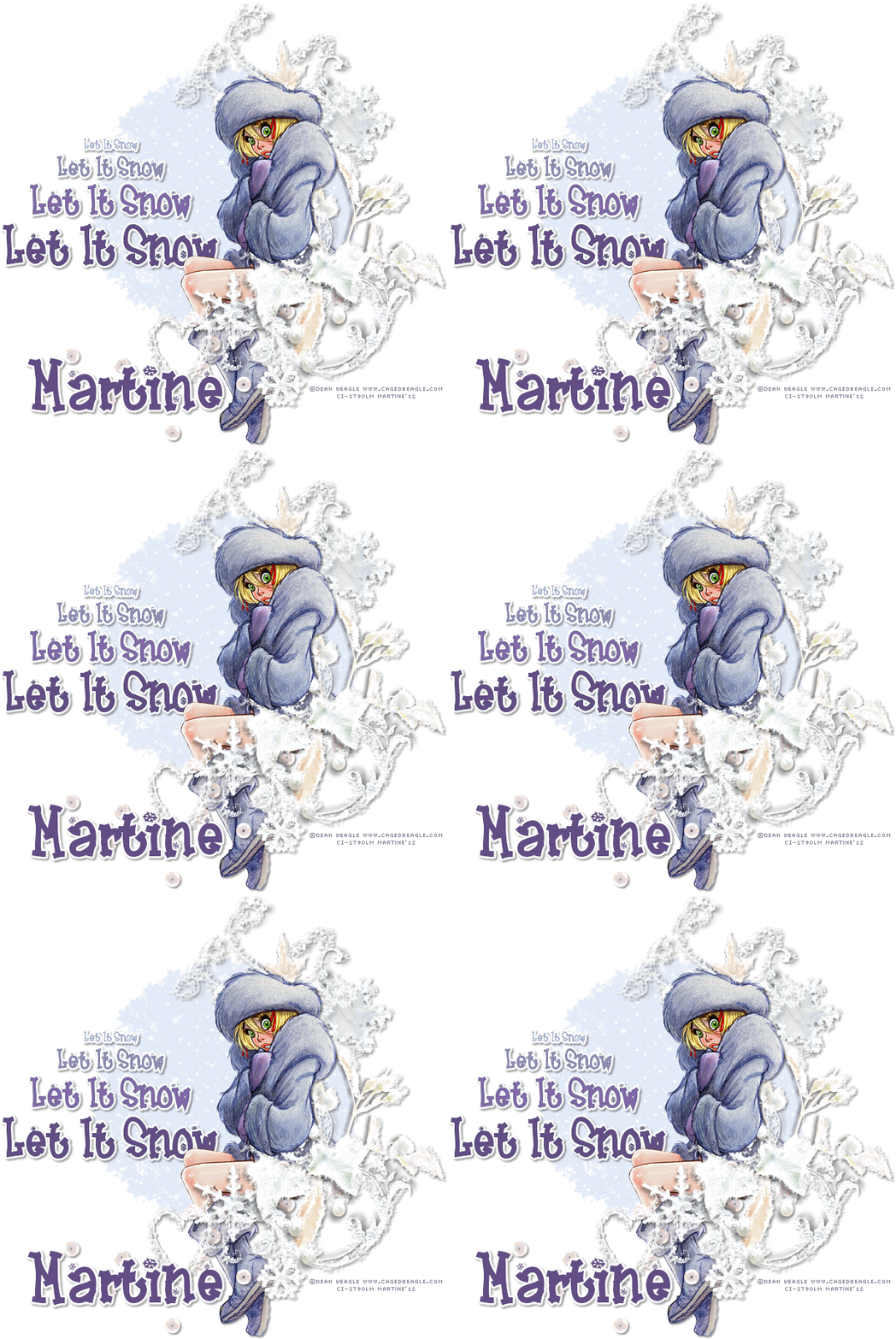
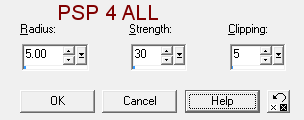
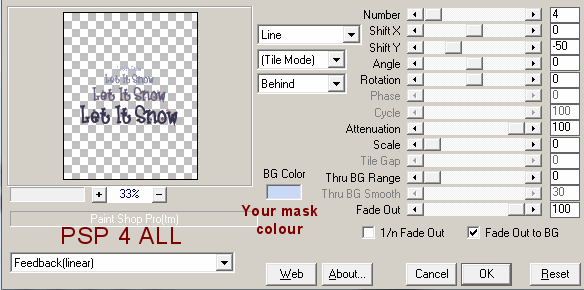
Cluster frame and mask: And Winter Came by Tempus Fugit. Plugins: Eye Candy 4000 - Gradient Glow and MuRa Meister - Copies Font: Frosty and Pixelette. Snow: Dowload the zip. This was shared in Shewolf's group but has no credit. If it is yours or you know who it belongs to, let me know and I will give proper credit. You can download my E-Book which will let you work without being connected.  . .STEP 1 - Background and Mask Resize the main element and the mask to 25%. Image > Mirror on both. Add a layer > move to bottom and fill with white. Recolor the mask. Selections > Select All > Selections > Float > Selections > Defloat. Add a layer and fill with blue. I used #CAD8F7 and then lowered the opacity to 50. Delete the original layer. Selections > Select None. Sharpen the element. Click on Adjust > Sharpness > Unsharp Mask
Apply a drop shadow on this element
STEP 2 - Tube
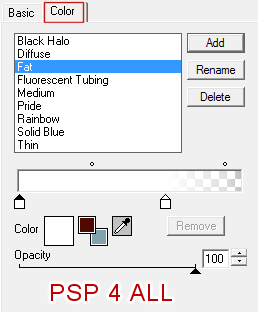
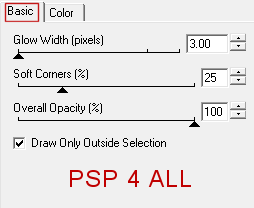
Apply Eye Candy 4000 > Gradient Glow
Then same drop shadow as above. STEP 4 - Credits With a small pixel font like Pixelette. STEP 5 - Animation Open the snow in PSP. Close all 10 layers. Go back to your result and close the background layer. Click on the mask layer. Copy paste this layer to the snow image. Place it right at the bottom, under all the snow layers. Back to your result. Keep the background layer closed. Close the mask layer. Merge visible all the other layers: element, tube, text and credits. Copy paste this merged layer onto the snow image as a new layer. Position this layer right at the top, above all the snow layers. Now ensure all the snow layers are closed. Open the mask layer, Frame 1 of the snow layer and the merged layer with your tube right at the top. Click on the mask. Selections > Select All > Selections > Float > Selections > Defloat. Click on Selections > Invert. Move onto Frame 1 and hit Delete. You are deleting the snow on the outside of the mask. Selections > Select None. Merge visible the 3 open layers: mask, Frame 1 and the merged image with tube at the top. Copy paste this merged layer in Animation Shop. Return to PSP. Click twice on the Undo Arrow and then close Frame 1 and open Frame 2. While on Frame 2, hit Delete. Merge visible the 3 layers: mask, Frame2 and merged image with tube at the top. Paste this merged image after the Current Frame in Animation Shop. Return to PSP. Click twice on the Undo arrow and then close Frame 2 and open Frame 3. Repeat the above steps until you have merged all the frames of the Snow image, there are 10 in all. In Animation Shop, your new animation should have 10 frames. Click on Edit > Select All. Animation > Animation Properties > Canvas Color > Opaque and choose white. Now save as a gif. Martine 6 January 2012 If you have any questions, don't hesitate to contact me   |